How to choose a password manager
By Daniel Okafor · · 8 min read
Short answer: choose a password manager on its security model and audit history first, then on cross-device sync, clean data export and an honest record on breaches. The slick interface and the long feature list matter far less than whether the design keeps your vault safe even from the company that built it.
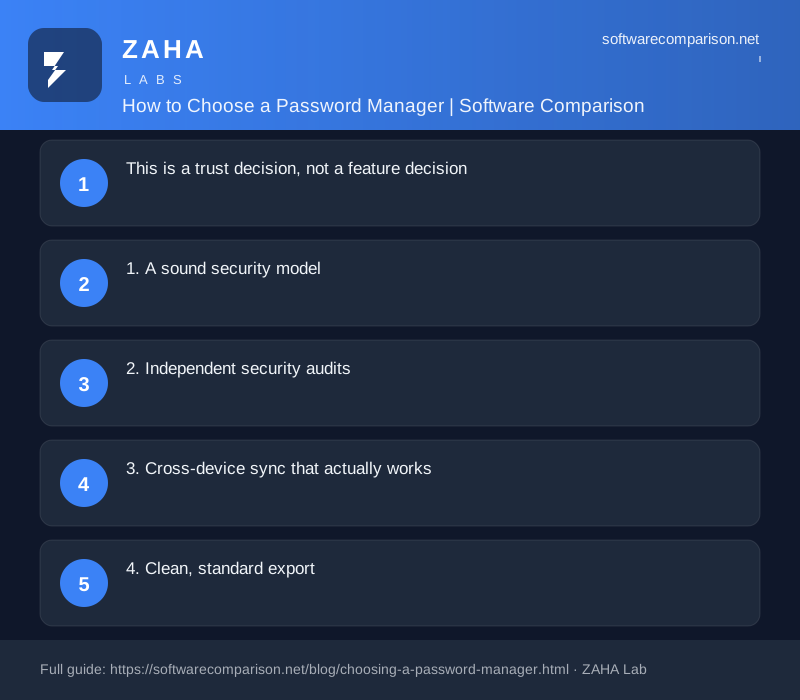
This is a trust decision, not a feature decision
A password manager will end up holding the keys to your entire digital life — email, banking, work, everything. That makes it unlike most software purchases. You are not just buying convenience; you are deciding which company to trust with the one thing that, if exposed, unravels everything else. So the criteria are weighted differently from an ordinary buying guide: security design comes first, and everything else is a tie-breaker.
1. A sound security model
The single most important property is that the provider should be unable to read your vault, even if it wanted to or was compelled to. In practice that means end-to-end encryption, where the key is derived from a master secret only you hold and is never sent to the company's servers. If the design is right, a breach of the provider exposes only encrypted blobs that are useless without your master secret. If you cannot tell from the documentation whether this is the case, treat that opacity as a warning sign.
2. Independent security audits
Claims of strong encryption are easy to make and hard to verify on your own. Look for a vendor that commissions independent security audits and publishes the results, and that runs a bug-bounty programme inviting outside researchers to find flaws. Regular, public auditing is a sign of a company confident enough to be examined. A vendor that asks you to simply trust its marketing has given you no way to check.
3. Cross-device sync that actually works
A password manager only helps if it is there at the moment you need a login — on your phone, your laptop, your browser. Check that it syncs reliably across the platforms you actually use, with browser extensions and mobile apps that autofill cleanly. A manager you abandon because it is awkward on your phone is worse than useless, because you will drift back to reusing weak passwords. Convenience here is a security feature, not a luxury.
4. Clean, standard export
Before you trust a tool with years of logins, confirm you can get them out again. Easy export — to a standard format such as CSV or an encrypted backup — is your insurance against lock-in and against the vendor declining over time. It is also a quiet signal of confidence: a company comfortable letting you leave is usually a company comfortable being judged on merit. If export is buried, crippled or absent, you are being quietly trapped.
5. An honest breach history
No provider is immune to incidents, and a breach in a vendor's past is not an automatic disqualification. What matters is the design and the response. Was the exposed vault data encrypted and therefore unreadable? Did the company disclose promptly and in plain language, or downplay and delay? Did it fix the underlying cause? A transparent, well-handled incident can tell you more good things about a vendor than a clean record that has simply never been tested.
Green flags vs red flags
| Topic | Green flag ✅ | Red flag 🚩 |
|---|---|---|
| Encryption | End-to-end; provider can't read vault | Vague or unclear key handling |
| Audits | Public independent audits, bug bounty | Trust-our-marketing only |
| Sync | Reliable across your devices | Flaky autofill, drops sessions |
| Export | Standard, easy export | Hidden or crippled export |
| Incidents | Prompt, transparent disclosure | Delays, spin, repeat failures |
The foundation no manager can replace
A password manager makes strong, unique passwords practical, but the strength of each one still matters. Generating long, random passwords and avoiding reuse is the bedrock the whole system rests on. Our network tools can help here directly — use a dedicated password generator to create strong credentials for related checks. The manager stores and fills them; these tools help you create them well in the first place.
Free or paid?
You do not always need to pay. Several capable managers, including those built into browsers and operating systems, are free and use sound encryption. Pay when you need cross-platform sync, secure sharing, family or team management, or richer breach monitoring. As always, the security model outweighs the price — a point we make more broadly in free vs paid software. And if you are weighing several options, our how to choose software framework gives you the wider checklist.
Some links may be affiliate links; they never affect our recommendations.
Frequently asked questions
What is the most important thing in a password manager?
A sound security model. The provider should never be able to read your vault, which means end-to-end encryption derived from a master secret only you hold. Pair that with independent security audits and a transparent record of how past incidents were handled. Features come second to whether the design protects you even if the company itself is breached.
Should I trust a password manager that had a breach?
Not automatically, but a breach is not an automatic disqualification either. What matters is the design and the response: was encrypted vault data exposed but unreadable, did the company disclose promptly and honestly, and did it fix the underlying problem? A transparent response to a breach can be more reassuring than a vendor that has simply never been tested.
Do I need a paid password manager?
Not always. Several capable options, including those built into browsers and operating systems, are free and use sound encryption. Pay when you need cross-platform sync, secure sharing, family or team management, or richer breach monitoring. The security model matters far more than the price tag.
How do I switch password managers safely?
Before committing, confirm you can export your entire vault in a standard format such as CSV or an encrypted backup. Easy export is a sign of a confident vendor and your insurance against lock-in. When you move, import into the new tool, verify everything transferred, then securely delete the export file and close the old account.
This article is general information to help you decide, not professional advice.